A marketplace form is more than a collection of input fields. It determines what information the platform can collect, how consistently listings are structured, and how easily users can complete important actions.
As a marketplace grows, its forms must evolve. New categories require different attributes, registration requirements change, validation rules become stricter, and enquiry forms need additional information. In a conventionally developed platform, even a small field change can require updates to the database, backend validation, APIs, and frontend interface.
CubiqWeb addresses this challenge through a dynamic Form Builder designed for the major forms used throughout a marketplace. It allows fields, groups, validation rules, display order, reusable options, uploads, and conditional behaviour to be configured centrally, significantly reducing the development effort required for routine changes.
1. Why is a Form Builder important in CubiqWeb?
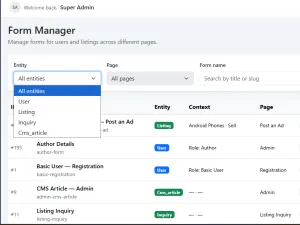
A marketplace rarely has just one simple form. It needs forms for:
- Listing submission and editing
- User registration
- User profile management
- Dealer contact
- Listing enquiries
- General contact enquiries
These forms continue to change as the marketplace introduces new categories, business rules, user roles, and services.
A general marketplace may contain vehicles, properties, jobs and professional services. These categories cannot use the same listing form. CubiqWeb enables each category or listing type to request information relevant to that particular market while preserving common listing fields across the platform.
Without a Form Builder, every change - adding a field, updating validation, regrouping fields, or rearranging a form - requires source-code modification, testing, and deployment. CubiqWeb centralizes these configurations so administrators can manage routine form changes more efficiently.
2. How does it save development time?

Compare the conventional approach with the CubiqWeb Form Builder:
| Form change | Conventional approach | CubiqWeb Form Builder |
|---|---|---|
| Add a field | Change the database, backend, and frontend | Configure the field through the admin panel |
| Change validation | Modify backend and often frontend code | Update the validation configuration |
| Create a field group | Update templates and layout components | Configure the group through the admin panel |
| Move a field between groups | Modify the form layout | Reassign the field to another group |
| Reorder groups or fields | Change templates or components | Update the group or field sequence |
| Make a field required | Develop, test, and deploy the change | Change the field settings |
| Add selectable options | Modify stored values or code | Connect reusable resources |
| Show a field conditionally | Write custom display logic | Configure field conditions |
| Reuse choices across forms | Duplicate the implementation | Use a shared Resource Group |
Note: Complex business changes may still require development. The Form Builder primarily reduces repeated development for routine form configuration.
3. Manage all major marketplace forms
The Form Builder is not limited to listing fields. It supports major forms throughout the platform. CubiqWeb applies form configurations contextually: listing forms can be configured by category and listing type, while user forms can be configured by user role.
Listing submission and editing
Listing forms can change dynamically according to the selected category, listing type, field values, and marketplace configuration.
Example: A vehicle listing can request make, model, year, and fuel type, while a property listing can request property type, bedrooms, furnishing, and area.
User registration and profile editing
Registration and profile fields can be configured according to the user's role. For example, a standard user may need only basic personal and contact details, while a dealer or corporate user may be asked for business information, verification documents, a company logo, and other role-specific details.
Registration can remain simple for general users while collecting the additional information required for specialized roles.
Dealer contact form
The marketplace can collect information relevant to dealer enquiries instead of relying on a generic name-and-message form.
Listing enquiry form
Listing enquiries can include targeted fields such as preferred contact method, budget, financing requirements, or intended purchase timeframe.
General contact form
The contact form can be adjusted to collect the specific information the business needs from visitors.
4. Field types required by modern marketplaces
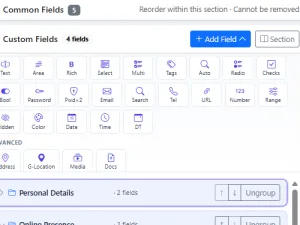
CubiqWeb supports most commonly required field types for marketplace operations:
- Text and Text Area: Titles, descriptions, and custom notes
- Email and Telephone: Structured contact details with appropriate validation
- Number, Date, and Time: Pricing, specifications, availability, and scheduling
- Checkbox, Radio Buttons, and Dropdown: Clear, structured selections
- Multi-select and Tags: Multiple features, amenities, skills, or attributes
- Autocomplete: Faster selection from long lists such as cities, makes, or models
- Media and Document Upload: Images and files for presentation or verification
- Hidden and System-managed Values: Contextual data managed by the application
- Conditional Fields: Relevant inputs displayed according to previous selections
5. Flexible sources for selectable field options
CubiqWeb supports multiple ways to populate fields such as dropdowns, radio buttons, checkbox groups, autocomplete controls, and multi-select fields:
- Static Options: Values configured specifically for an individual field
- Resource Groups and Resources: Reusable predefined values shared across forms
- Categories: Options retrieved dynamically from the marketplace category structure
- Users: User records provided as selectable options when required
This gives administrators the flexibility to use simple field-specific choices, reusable catalogues or data already managed elsewhere within the marketplace.
6. Reusable Resource Groups and Resources
A Resource Group represents a reusable collection of options, while Resources are the individual options available within that collection.
| Resource Group | Example Resources |
|---|---|
| Vehicle Make | Tata, Mahindra, Hyundai, Toyota |
| Fuel Type | Petrol, Diesel, CNG, Electric |
| Property Furnishing | Unfurnished, Semi-furnished, Furnished |
| Preferred Contact Method | Phone, WhatsApp, Email |
| Skills | PHP, Laravel, React, JavaScript |
The same Resource Group can be connected to dropdowns, radio buttons, checkbox groups, multi-select controls, tags, and autocomplete fields. This prevents options from being recreated independently across forms and helps maintain consistent data.
Reusable Resources help prevent inconsistent variations such as "Electric," "electric," and "EV" from being stored as unrelated values. Consistent structured data improves filtering, reporting, listing comparison, and future search enhancements.
7. Practical workflow: Creating a vehicle-listing form
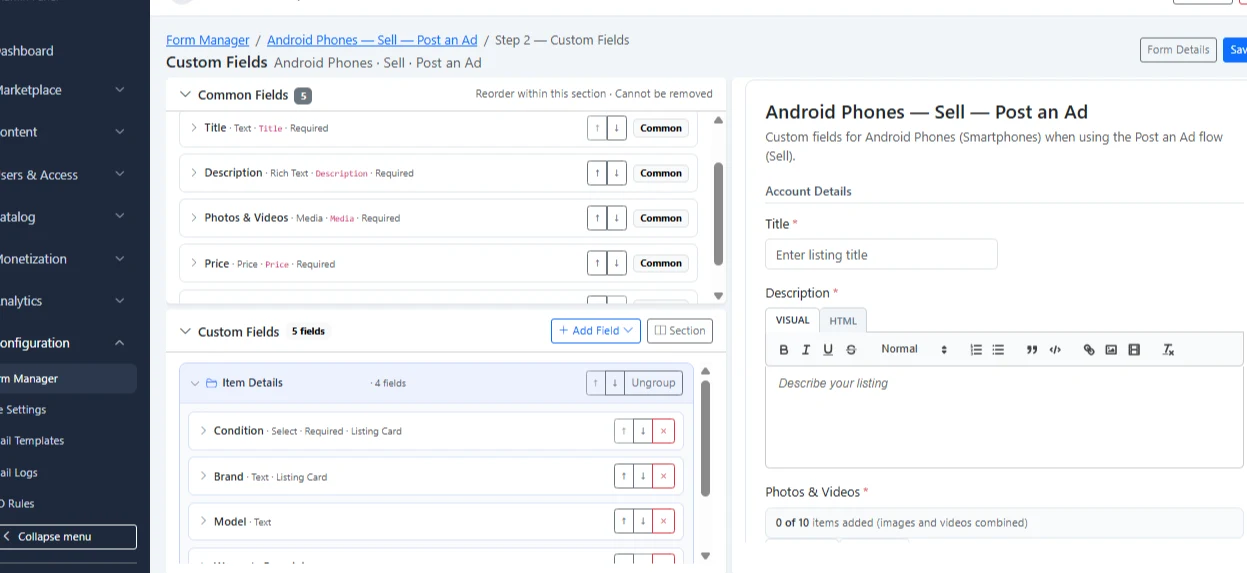
Consider a marketplace that allows users to post vehicles for sale. Instead of developing a separate hard-coded form, an administrator can configure the required structure through CubiqWeb's Form Builder.
Step 1: Create logical field groups
The administrator begins by creating groups that organize the vehicle information into clear sections:
- Basic Information
- Vehicle Specifications
- Pricing and Availability
- Location
- Images and Documents
- Seller Details
Step 2: Add the required fields
Fields can then be added to the appropriate groups. For example, the Vehicle Specifications group may contain:
- Vehicle Make
- Vehicle Model
- Variant
- Manufacturing Year
- Fuel Type
- Transmission
- Kilometres Driven
Step 3: Connect reusable Resources
Fields such as Vehicle Make, Vehicle Model, Fuel Type, and Transmission can be connected to predefined Resource Groups. This allows options such as Tata, Mahindra, Hyundai, Petrol, Diesel, Electric, Automatic, and Manual to be managed centrally and reused wherever required.
Step 4: Configure validation
The administrator can make important fields mandatory, restrict the manufacturing year to an acceptable range, prevent negative values for kilometres driven, and define limits for uploaded images or documents.
Step 5: Add conditional behaviour
Conditional rules can display additional fields only when they are relevant. For example, selecting "Electric" as the fuel type can display fields for battery capacity and driving range, while those fields remain hidden for petrol or diesel vehicles.
Step 6: Arrange groups and fields
Complete groups can be reordered, and fields can be sorted within each group. Important information can appear near the beginning of the form, while optional details and supporting documents can be placed later.
Step 7: Apply the form to the relevant marketplace context
The applicable form configuration depends on the entity being managed. For a listing form, fields can be assigned according to the selected category and listing type. For a user registration or profile form, fields can be assigned according to the relevant user role.
For example, vehicle-sale listings can receive fields for make, model, fuel type, transmission, and kilometres driven, while dealer registration can request business information, a dealer logo, verification documents, and other role-specific details.
This allows CubiqWeb to display a structured form appropriate to the listing or user context without maintaining separate hard-coded forms for every category, listing type, or user role.
This workflow demonstrates how CubiqWeb combines field groups, reusable Resources, validation, conditional logic, and sorting to create a category-specific marketplace form with significantly less repeated development work.
8. Advanced media and document uploads
CubiqWeb provides configurable media management that goes beyond a basic file input:
- Permitted file types and file-size limits
- Minimum and maximum numbers of files
- Single and multiple upload controls
- Image dimensions, resizing, and variant generation
- Required and optional file fields
- Field-specific upload and document restrictions
Common use cases: Listing photographs, user avatars, dealer logos, product brochures, property documents, certificates, and verification files.
9. Conditional fields for cleaner forms
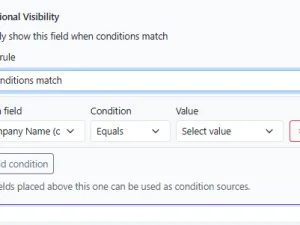
Conditional fields respond to user input, producing shorter, cleaner, and more relevant forms:
- Show "Company Name" when the user selects "Business Account."
- Show "Registration Year" for applicable vehicle listings.
- Show "Furnishing Details" only when a property is marked as furnished.
- Show financing-related questions when "Finance Required" is selected.
- Request additional documents for specific listing categories.
10. Validation without repeated coding
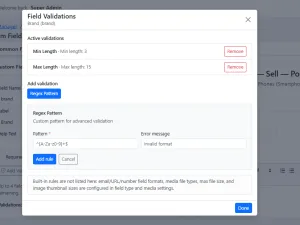
Administrators can configure validation rules through the admin interface, including:
- Required or optional fields
- Minimum and maximum character lengths
- Numeric range limits
- Valid email and phone formats
- Permitted file types and size restrictions
- Minimum and maximum selection limits
- Date-range restrictions and conditional requirements
When business rules change, many validation rules can be updated through configuration without requiring a new development and deployment cycle.
11. Grouping and sorting of groups and fields
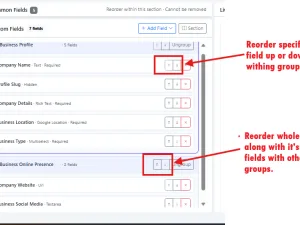
Large marketplace forms can contain dozens of fields. Displaying every field in one unstructured list makes a form difficult to understand and complete. CubiqWeb allows related fields to be organized into logical groups, while both groups and individual fields can be arranged in the required order.
Example vehicle-listing groups
- Basic Information
- Vehicle Specifications
- Pricing
- Location
- Images and Documents
- Seller Details
Vehicle Specifications field order
- Make
- Model
- Variant
- Manufacturing Year
- Fuel Type
- Transmission
- Kilometres Driven
Administrators can:
- Create logical field groups
- Assign fields to the appropriate group
- Reorder complete groups
- Reorder individual fields within each group
- Move fields between groups
- Place important fields near the beginning and optional fields later
- Maintain suitable structures for different forms and listing categories
CubiqWeb provides control over both the data collected and the way it is presented by allowing administrators to organize fields into logical groups and independently manage the display order of groups and fields.
12. Form ordering and continuous improvement
Marketplace forms rarely remain unchanged. CubiqWeb makes it easier to refine them as business priorities evolve:
- Move contact details to the end of registration to simplify initial sign-up.
- Place critical listing attributes near the beginning.
- Keep logically related specifications together.
- Move optional or supporting fields later in the journey.
- Reorganize inputs based on conversion and form-abandonment analytics.
Conclusion
CubiqWeb's Form Builder is not simply an administrative convenience; it is an engine for long-term platform adaptability.
By centralizing fields, groups, validation, display order, reusable resources, upload controls, and conditional logic, CubiqWeb helps marketplaces introduce new categories, refine user journeys, and respond to changing business requirements with less development effort.
The result is a marketplace that can evolve without turning every routine form adjustment into a separate development project.
Are you planning a classified, dealer, directory, property, vehicle or service marketplace? Contact CubiqWeb to discuss how its configurable Form Builder can be adapted to your categories, users and business workflows.
Ready to Build Your Own Marketplace?
Launch a flexible and scalable marketplace designed around your categories, users, workflows, and business goals.
Read-only demo credentials are available directly on the admin login page.